
Your needs, this model
Does it fit your priorities?
Can the Pro record 4K120 HDR while passing 4K120 to my display?
Not as a 4K120 HDR file. Elgato's current support matrix says a 4K120 HDR input can be passed through while the HDR capture is 1080p120. The newer 4K120 capture mode is 8-bit SDR. The card can still pass HDR10 to a compatible display, but that is not the same as preserving 4K120 HDR in the recording.
Explore this need in the finder →Is 8K60 something the 4K Pro records?
No. Elgato lists 8K60 as a passthrough format, while the capture specifications and support matrix describe lower recording modes. The card also does not support DSC, and Elgato notes that the PS5 Pro's 8K output format is unsupported. Treat 8K60 as a display-path capability, not an 8K recording promise.
Explore this need in the finder →What must be inside the PC before I choose this card?
Elgato specifies an available PCIe 2.0 x4 connection and lists a suitable x4, x8 or x16 slot. The card is for a desktop, not a laptop. Its system requirements also list Windows 10 64-bit or later, an eighth-generation Core i5 or Ryzen 5 3600-class CPU, an NVIDIA GTX 10-series-or-better GPU and 8 GB dual-channel RAM for the capture utility; other apps can have different encoder requirements.
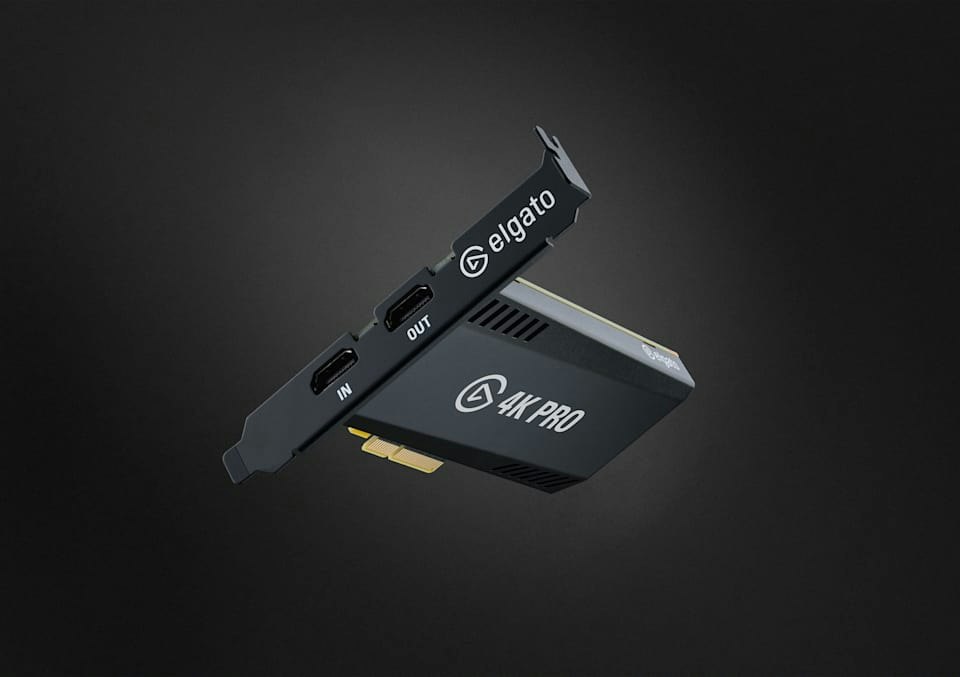
Explore this need in the finder →Game Capture 4K Pro is Elgato’s internal HDMI 2.1 capture card for a Windows desktop with an available PCIe slot. The US product page identifies SKU 10GBK9901 and includes the card plus a 200 cm HDMI cable; it explicitly says the device must be installed in a desktop and is not compatible with laptops. Its main distinction from the similarly named 4K X is the host connection: PCIe instead of USB. The Pro can pass higher display modes and, with current firmware and driver support, offers HDR and high-frame-rate capture options that the external card does not match in every mode.
A desktop installation is the first compatibility test
The board uses PCIe 2.0 x4 and Elgato lists a suitable x4, x8 or x16 slot in its system requirements. Slot size is not the only practical issue: check that the slot is available, has the required bandwidth and will not be blocked by the graphics card or another component. There is no USB path to fall back on, and the unit cannot be moved to a laptop or tablet.
Elgato documents Windows 10 64-bit or later for the Pro. The listed baseline includes an eighth-generation Intel Core i5 or Ryzen 5 3600-class CPU, an NVIDIA GTX 10-series-or-better GPU, 8 GB of dual-channel RAM and an internet connection. Those requirements are tied to Elgato’s capture utility; the company notes that other software, including OBS, can have different encoding requirements. For 4K60 HDR in the capture utility, Elgato specifies a GeForce GTX 1050-or-better class GPU. Confirm the current system page for the chosen software instead of assuming the capture card itself supplies encoding power.
Passthrough can exceed the recorded file
The Pro’s HDMI 2.1 input accepts unencrypted HDMI, and its output passes HDR, VRR and ALLM. Elgato lists passthrough up to 8K60, 4K240, 1440p240 and 1080p240. These figures describe the signal sent onward to a display. They do not mean the computer records 8K60 or 4K240. The product specification describes 4K60 capture, while the current detailed support article also documents additional capture modes after Elgato Studio 1.1 and a current driver/firmware combination. Read those capture and passthrough tables as different parts of the signal path.
Elgato’s current support article says 4K Pro does not support DSC signals. A high-refresh display can therefore show a mode that the card cannot capture as the same signal. The support page also describes 4K120 capture in 8-bit SDR, 1440p240 and 1080p360 as newer modes requiring the updated software/firmware. It says the specific driver is delivered through the Beta release channel. If those are the reason to choose the Pro, verify that the stated driver is available to you and that your source, slot, display and recording app support the intended format.
HDR capture has exact limits
The Pro supports HDR10 passthrough and Windows HDR capture. Elgato’s specifications list capture up to 4K60 HDR, and the detailed guide notes that the input signal affects what can be recorded. In particular, with a 4K120 HDR input, the guide says the capture output is limited to 1080p120 HDR. To record the full 4K120 format, Elgato says to use SDR. That is an important distinction for someone whose requirement is specifically “4K120 HDR in the file,” rather than HDR on the display while recording.
HDR capture also depends on the host GPU, Windows, app and mode. The Pro is not a solution for macOS HDR recording, and the high display-mode ceiling does not override capture software or source limitations. The signal must be unencrypted; this card does not bypass copy protection.
When the internal card is the better fit
A fixed desktop or dual-PC stream is the natural use: the gaming machine can feed HDMI into the card, and a separate Windows computer can process the capture feed if the setup is designed that way. It also fits a creator who needs the higher listed passthrough ceiling, or who wants 4K60 HDR capture and has a compatible Windows system. Elgato’s quick-start sequence is deliberately simple—install the board, connect source and display over HDMI, then choose capture software—but the physical slot and driver checks happen before that convenience matters.
Choose 4K X instead when the computer link must be USB and portable, or when Mac and USB-C iPad workflows are important. Choose 4K S when HDMI 2.0 and up-to-4K60 capture are sufficient. These are useful distinctions because the Pro’s extra passthrough headroom cannot help a setup that lacks a suitable desktop slot or needs a non-Windows host.
Questions worth resolving before installation
Check the exact PC slot and its bandwidth, then confirm the capture computer’s Windows and GPU requirements. For high-end modes, check the current firmware, driver release channel and application version. Finally, write down two independent targets: the source/display passthrough mode and the file or stream capture mode. If they differ—such as 4K120 HDR gameplay with a 1080p120 HDR recording—use Elgato’s documented input-to-capture matrix rather than assuming the device records whatever it passes through.
This is a specification-based assessment, not a report of installation or testing. No latency, compatibility or sustained-performance measurement was made here. The model is promising only when the host, slot, source and exact driver-backed mode fit the real setup.
Key specifications
Key details at a glance
| Signal input | hdmi_2_1_unencrypted |
|---|---|
| HDMI generation | HDMI 2.1 |
| Confirmed capture formats | 4K60 HDR / 4K120 SDR / 1440p240 SDR/HDR / 1080p360 SDR/HDR / 1080p240 SDR / 720p240 |
| Confirmed passthrough formats | 8K60 / 4K240 / 1440p240 / 1080p240 / HDR10 / VRR / ALLM |
| Computer connection | Pcie |
| HDR recording | Windows only; official specs list up to 4k60 hdr. 4k120 hdr input captures at 1080p120 hdr; 4k120 capture is sdr. 1440p240 and 1080p360 hdr require the documented newer driver/firmware path. |
| VRR passthrough | Yes |
Use the exact model’s instructions for operating limits, supplied equipment and version differences.
Sources for this review
Sources for this assessment
- Game Capture 4K Pro — official US product page, SKU and package
- Elgato Game Capture 4K Pro — Supported Resolutions and Frame Rates
- Elgato Game Capture 4K Pro — Technical Specifications
- Elgato Game Capture 4K Pro — System Requirements
- What’s the difference between Elgato Game Capture 4K X and 4K Pro
- Elgato Game Capture 4K Pro — Quick Start Guide
Check your complete signal path
Choose the source format, desired captured signal, passthrough target, computer connection and software together. A single device must support that whole arrangement.