
Your needs, this model
Does it fit your priorities?
Can GC553Pro show 4K60 on my display while it records 4K60?
AVerMedia’s GC553Pro matrix maps 4K60 pass-through input to 4K60 SDR capture, so the exact pair is documented. The same page separately lists HDR/VRR passthrough, but its product specification caps HDR capture at 1080p60 (or 1440p30), so do not infer a 4K60 HDR recording from a 4K60 display path. Confirm the source and display negotiate the mode you need.
Explore this need in the finder →Can a Mac record GC553Pro at 4K60?
The manufacturer lists macOS support and says 4K60 MJPEG capture needs an M1 Ultra, M2 Ultra or later-class Ultra processor plus current firmware; its Mac-compatibility FAQ also recommends a direct USB 3 connection. Mac capture does not include HDR recording or RGB24. Check that the target Mac meets those requirements before treating 4K60 as a usable workflow.
Explore this need in the finder →Does a 4K60 HDR passthrough claim mean GC553Pro records HDR at 4K60?
No. AVerMedia lists HDMI 2.0 HDR/VRR passthrough up to 4K60, but the product page’s HDR-recording entries top out at 1080p60 or 1440p30, and macOS does not record HDR. The mode table separately contains an ambiguous 1080p120 HDR marker; this assessment does not expand the documented product-page HDR ceiling on that basis. For a captured HDR file, select a Windows setup and verify the exact source format and app.
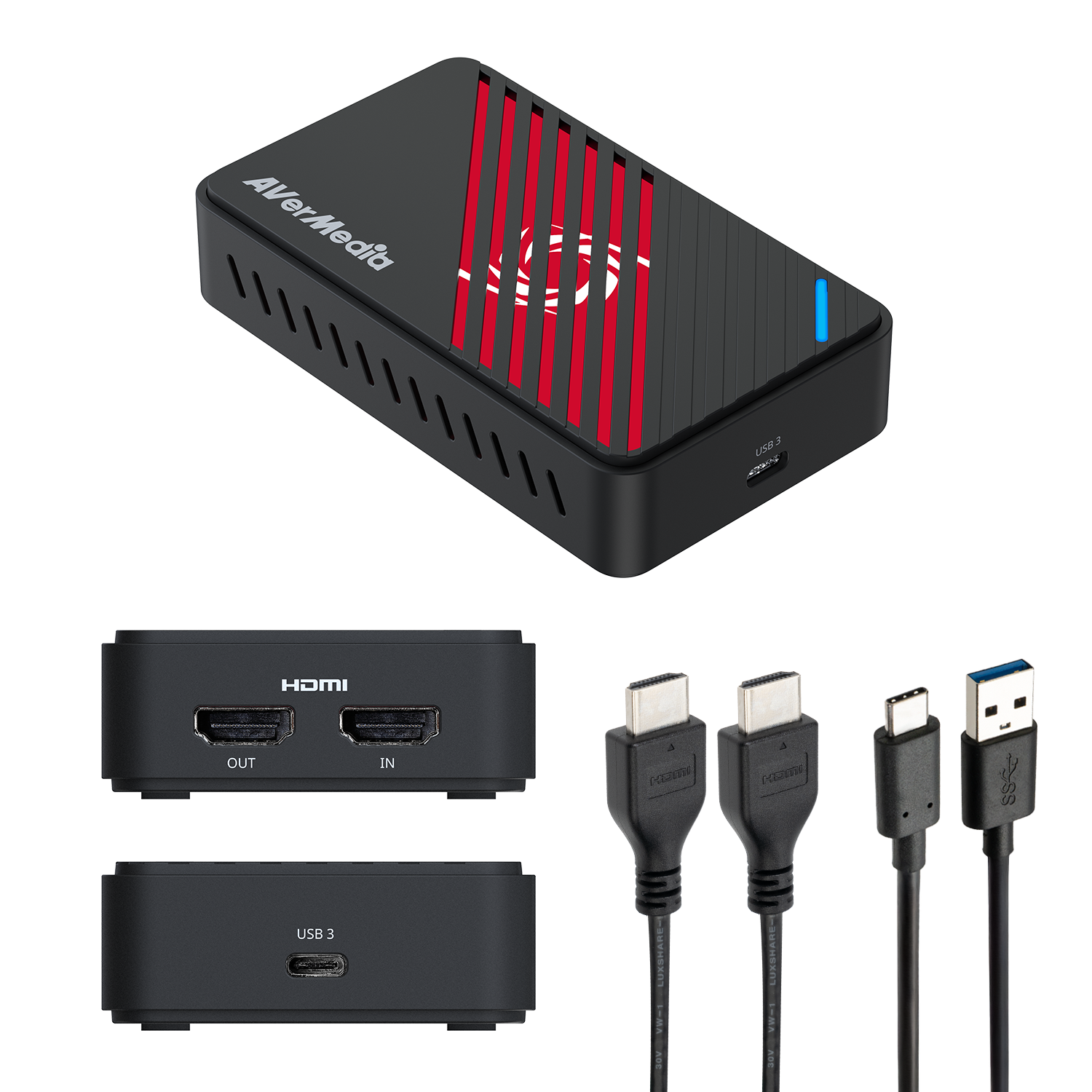
Explore this need in the finder →AVerMedia’s GC553Pro, sold as the Live Gamer ULTRA S, is a small external HDMI capture device rather than an internal card. The US store has separate black and white retail listings, with SKUs 61GC553PR0CF and 61GC553PR0CG. The manufacturer product page and mode documentation describe the same GC553Pro hardware and capabilities for both finishes; that is why this assessment covers the pair together rather than treating color as a performance revision. Check the exact finish and SKU on the package, especially when a used or open-box listing has a generic product title. AVerMedia’s black US listing and white US listing are the identity references.
Its signal ceiling is HDMI 2.0, not the later HDMI 2.1 model
The device uses HDMI 2.0 for input and display passthrough, and USB 3.2 Gen 1 Type-C at 5 Gbps to the host. AVerMedia lists 4K60, 1440p144 and 1080p240 capture, with higher refresh targets at lower resolutions; its separate passthrough limits are 4K60, 1440p144 and 1080p240, with HDR/VRR named on that display path. The useful distinction is not just “4K”: the official matrix maps the incoming pass-through signal to a supported capture output. For example, it shows the GC553Pro capturing 4K60 from a 4K60 input, but that 4K60 capture cell is SDR. A display receiving HDR does not make the recorded file 4K HDR.
For a 4K60 game display and a 4K60 SDR capture target, the documented pair is a genuine strength. For 4K120 display output, this is the wrong generation: its HDMI 2.0 path is not listed for 4K120. The manufacturer’s mode chart also matters at 1440p and 1080p. It demonstrates, for example, that the capture target can be lower than the pass-through input. Treating separate maxima as one guaranteed configuration would overstate what the table says.
HDR capture is more limited than HDR passthrough
The product page lists HDR10/P010 capture on Windows up to 1080p60 or 1440p30; the rest of the headline capture modes are not all HDR. The manufacturer says HDR recording and its RGB24 format are unavailable on macOS. Meanwhile, its display path advertises HDR/VRR through 4K60, 1440p144 or 1080p240. Those are useful but different jobs: the monitor can receive a high-quality signal while the computer receives a lower SDR file. The support matrix has a 1080p120 row marked for HDR in one cell pattern that does not align cleanly with the product-page HDR ceiling, so this assessment does not promise 1080p120 HDR; check current firmware documentation if that exact output is essential.
HDCP-protected sources are explicitly unsupported for viewing, recording or streaming. Before choosing the card for a console, camera, player or PC source, verify that the source can provide an unencrypted HDMI output in the format you need. Also check the source, display and cables: successful passthrough at one resolution does not prove the capture software will expose every listed rate.
Choose the host and app as carefully as the card
AVerMedia lists Windows 10/11, macOS 13/14 or later and iPadOS 17 or later. Its Windows requirements name a desktop CPU/GPU floor and a separate laptop floor; 8 GB dual-channel memory is recommended. macOS support is not equivalent to the Windows matrix: the manufacturer lists an Apple M1 or specified Intel/Radeon configuration, 16 GB memory, and requires M1 Ultra/M2 Ultra or a later Ultra-class system for 4K60 MJPEG capture. AVerMedia’s Mac compatibility FAQ also recommends a direct USB 3 connection. Do not plan on Windows HDR capture or RGB24 on the Mac path.
On Windows, AVerMedia names its Streaming Center and an OBS Studio plugin; on Mac, its compatibility material documents OBS usage. The product page’s iPadOS floor is not a complete iPad workflow description: the reviewed material does not identify a capture app or publish an iPad-specific mode table. If the iPad is the host, resolve the app, adapter and exact output format before relying on it.
Audio and package details worth checking
The listed package contains the capture unit, an HDMI 2.0 cable, a Type-C-to-Type-A USB cable and a quick guide. The official dimensions are 112.6 × 66.2 × 26 mm and the device weighs 99 g. AVerMedia advertises 5.1-channel audio capture in Windows Streaming Center and its OBS plugin, while noting that LPCM is stereo. The listed specifications do not identify separate analog headset or gamepad jacks on this model, so do not assume the GC553G2’s party-chat connectors are present. A different audio route may be needed for a microphone or headset.
Who should compare it with GC553G2?
The GC553Pro is the more modest external path: HDMI 2.0, 5 Gbps USB and a 4K60-class ceiling. The newer GC553G2 moves to HDMI 2.1 and 10 Gbps USB and lists higher passthrough and Windows capture targets, but it also has its own demanding host, display and software conditions. If your display must receive 4K120 or 4K144, compare those exact mode requirements rather than choosing from the model names. If your source is 4K60 and your file target is SDR 4K60, the Pro’s explicit pairing may be sufficient. Neither model’s advertised capability substitutes for checking the host port, capture software and protected-content rules.
This is a research-based specification assessment, not a hands-on test. The appropriate decision is to match the source and desired recording mode first, then confirm the passthrough path, operating system, software and included cables. For the exact black or white GC553Pro, check the retail SKU as well as the feature name.
Key specifications
Key details at a glance
| Signal input | hdmi_2_0_unencrypted |
|---|---|
| HDMI generation | HDMI 2.0 |
| Confirmed capture formats | 4K60 SDR / 1440p144 SDR / 1080p240 SDR / 1080p120 SDR / 1080p60 SDR / 1080p60 HDR / 1440p30 HDR |
| Confirmed passthrough formats | 4K60 HDR/VRR / 1440p144 HDR/VRR / 1080p240 HDR/VRR |
| Computer connection | External USB 3.x host link; check this model's stated generation and port rate |
| Named compatible software | AVerMedia Streaming Center (Windows) / AVerMedia Streaming Center Plug for OBS Studio (Windows) / OBS Studio on Mac per the manufacturer Mac-compatibility workflow / AVerMedia Assist Central Pro for device setup/update |
| HDR recording | Windows-only p010/hdr10; product page and datasheet cap hdr capture at 1440p30 or 1080p60. the 2025 matrix image marks an additional 1080p120 hdr cell, so the public matcher follows the more conservative product/datasheet limit pending clarification. |
| VRR passthrough | Yes |
| Analog audio input | Hdmi 2.0 audio pass-through; manufacturer lists 5.1 multi-channel support on windows in streaming center/streaming center plug; lpcm remains stereo. no separate analog mic/headset jack is listed in the reviewed package/specs. |
Use the exact model’s instructions for operating limits, supplied equipment and version differences.
Sources for this review
Sources for this assessment
- GC553Pro Live Gamer ULTRA S — official US black listing and retail SKU
- GC553Pro Live Gamer ULTRA S — official US white listing and retail SKU
- Live Gamer ULTRA S GC553Pro — official manufacturer product and technical specifications
- GC553Pro Datasheet (2025-02-12) — capture/HDR mode limits
- GC553Pro supported pass-through/capture combinations and video-format matrix
- GC553Pro User Guide — technical specifications, package and setup
- GC553Pro Quick Guide — physical setup and connections
- AVerMedia Mac compatibility FAQ — Apple Silicon modes and cable guidance
- Official US black GC553Pro product page image
Check your complete signal path
Choose the source format, desired captured signal, passthrough target, computer connection and software together. A single device must support that whole arrangement.