
Your needs, this model
Does it fit your priorities?
Can GC553G2 capture 4K144 while passing 4K144 to a display?
Yes, the manufacturer’s Windows input/output matrix shows the 4K144 pass-through input paired with 4K144 capture, and the product page ties that capture target to MJPEG in Streaming Center. The 10 Gbps USB link, updated device firmware and demanding Windows CPU/GPU/RAM requirements are part of the claim. Do not carry that 4K144 result over to OBS or a Mac; the manufacturer names a different ceiling for those paths.
Explore this need in the finder →Will GC553G2 record 4K144 in OBS on Windows?
The reviewed manufacturer page specifically describes 4K144 capture through AVerMedia Streaming Center on Windows. AVerMedia also offers an OBS plugin, but the sources reviewed here do not assign that 4K144 maximum to the OBS path. Treat 4K144 in OBS as unverified for this assessment and confirm the exact software/firmware mode table before relying on it.
Explore this need in the finder →What should I verify before planning 4K144 passthrough?
AVerMedia lists 4K144 HDR/VRR passthrough, but the actual connection depends on a 10 Gbps host, HDMI 2.1 source and monitor, the supplied HDMI cable and display mode support. Its support material warns that some DSC arrangements can make the pass-through ceiling 4K120 or require a display with the right DSC behavior. Check the exact monitor input and firmware rather than treating the headline maximum as a guaranteed result for every chain.
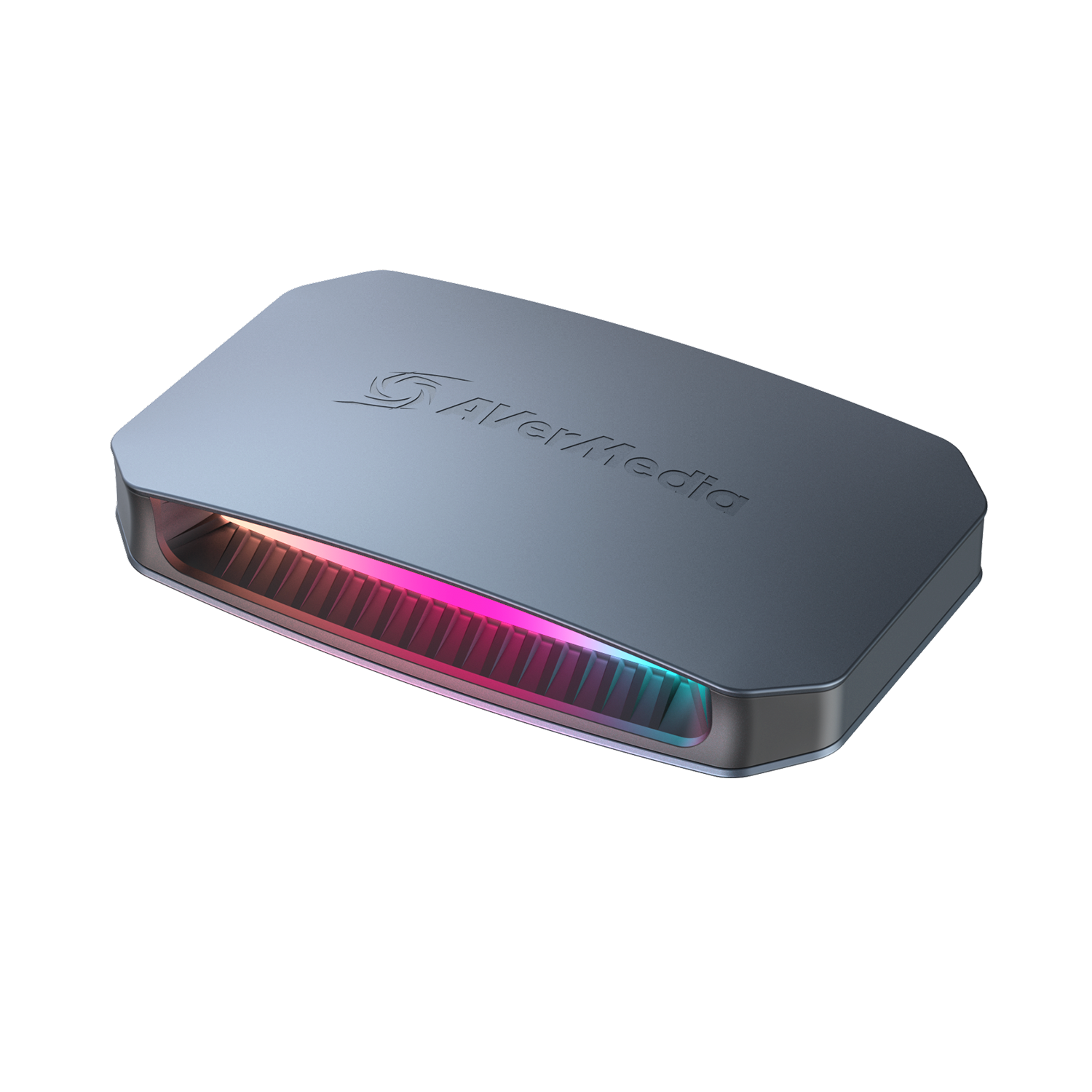
Explore this need in the finder →The AVerMedia Live Gamer ULTRA 2.1 GC553G2 is an external capture device with an HDMI 2.1 input/output path and a USB 3.2 Gen 2 Type-C host link. The US store identifies its retail listing as GC553G2 and gives a package SKU of 60GC553G20AJ. This is a distinct USB model from AVerMedia’s HDMI 2.0 GC553Pro and from the internal PCIe GC575/GC573 cards. Its headline advantage is substantial, but it depends on a specific Windows software, cable, port and computer arrangement rather than applying to every setup that can plug in the box.
4K144 is a Windows Streaming Center mode, not a universal maximum
AVerMedia documents capture up to 4K144 MJPEG through Streaming Center on Windows. The mode chart pairs that output with a 4K144 pass-through input; it does not say that 4K144 is available in every app. In particular, the current product page names 4K60 via OBS on Mac, not 4K144 via OBS. AVerMedia also lists the 4K144 Windows system floor separately: an Intel Core i5 12th-generation class CPU or later, RTX 3060 class GPU or later, and 16 GB memory. This is far more specific than a generic “USB capture” statement.
The external host link must support USB 3.2 Gen 2 at 10 Gbps for the full format table. AVerMedia’s chart reduces some format and frame-rate choices at 5 Gbps, even though a compatible lower-bandwidth capture path may still function. Use the supplied USB-C cable with a genuine 10 Gbps port; a USB-C connector alone does not establish that speed. The supplied package also includes an HDMI 2.1 cable, a 4-pole 3.5 mm audio cable and a quick guide.
Passthrough and recording have separate mode tables
The manufacturer lists HDR/VRR passthrough up to 4K144, 1440p240 and 1080p360, while capture reaches up to 4K144 in the specified Windows mode. Those are not interchangeable figures. The official GC553G2/GC575 mode matrix pairs each input pass-through resolution with particular capture outputs. For instance, its 4K144 input column allows different capture targets; the 1080p240 row is not a 4K144 capture, and 1440p240 is listed as a passthrough rate rather than a capture rate. The capture-format table also shows that 4K144 MJPEG needs the 10 Gbps connection, while the available 4K, ultra-wide, 1440p and 1080p modes vary by codec and USB bandwidth.
HDR recording is a Windows feature in the reviewed evidence. The matrix marks selected 4K30, 1440p60, 1080p120 and 1080p60 outputs as SDR-or-HDR; the higher 4K144 capture is not thereby a 4K144 HDR recording. The product page says HDR capture is unavailable on macOS. A source that sends HDR and a monitor that receives HDR do not prove that the captured file has HDR, so set the requested recording target explicitly.
Display and HDCP checks can decide whether it fits
AVerMedia warns that the actual high-refresh result depends on the HDMI 2.1 source, display input, cable, monitor mode and firmware. The product page notes that some monitors with built-in DSC may be limited to 4K120 passthrough. Its support FAQ for high-refresh selection also tells users to verify the monitor’s HDMI capability and DSC behavior rather than assuming a model name guarantees the mode. Check the exact display input and source output before purchase, especially if 4K144 or 1440p240 is the reason for choosing this device.
HDCP-protected video is not a supported capture source. A console or PC game output may be compatible while a protected streaming app is not; verify that the actual source can output unencrypted HDMI. For party chat, the GC553G2 has separate 4-pole 3.5 mm headset and gamepad input/output jacks. AVerMedia lists 5.1-channel capture on Windows, while LPCM itself remains stereo. Those ports and the included audio cable can simplify a console headset route, but they do not mean every app or audio format passes through as 5.1.
Mac and iPad are different operating plans
AVerMedia lists macOS 13/14 or later and provides a Mac OBS workflow. Its compatibility FAQ says GC553G2 can reach 4K60, 1440p60 and 1080p120 on the tested Mac setup; 4K60 MJPEG requires an M1/M2/M3 Ultra-class processor and updated firmware. This is a much lower mode ceiling than Windows Streaming Center’s 4K144 capture, and HDR capture is not available on Mac. The exact Mac model, cable/adapter and app version still matter.
The product page also lists iPadOS 17 or later, but the manufacturer material reviewed here does not give a product-specific iPad app or capture-mode table. That is a compatibility lead, not evidence that the Windows or Mac mode list applies to iPad. Confirm the exact app and source connection independently before treating iPad support as a complete recording workflow.
Bottom line: buy for the arrangement you can actually run
The GC553G2 is the more capable external AVerMedia option in this comparison when a Windows host, 10 Gbps USB port and 4K144-capable HDMI display chain all fit the job. It makes less sense to select it only for a “4K” label if your host is a Mac without Ultra-class hardware, your software requirement is OBS at 4K144, or your monitor’s DSC/HDMI implementation cannot sustain the intended passthrough. The smaller GC553Pro has an HDMI 2.0/5 Gbps ceiling but documents a simpler 4K60 path; the right choice depends on whether the display path or the recorded file is the constraint.
This is an evidence-based assessment of AVerMedia’s published specifications, support matrix, manual and US product listing, not an independent test. No measured latency, quality result or compatibility guarantee is claimed. Check the retail model and included cables, current firmware, USB port speed, display input and chosen software together; those are part of the real capture setup, not optional footnotes.
Key specifications
Key details at a glance
| Signal input | hdmi_2_1_unencrypted |
|---|---|
| HDMI generation | HDMI 2.1 |
| Confirmed capture formats | 4K144 SDR MJPEG (Windows Streaming Center) / 4K120 SDR / 4K60 SDR / 1440p144 SDR / 1080p240 SDR / 1080p120 HDR/SDR / 1080p60 HDR/SDR / 4K30 HDR/SDR |
| Confirmed passthrough formats | 4K144 HDR/VRR / 4K120 / 1440p240 HDR/VRR / 1440p144 / 1080p360 HDR/VRR |
| Computer connection | External USB 3.x host link; check this model's stated generation and port rate |
| Named compatible software | AVerMedia Streaming Center (Windows) / AVerMedia Streaming Center Plug for OBS Studio (Windows) / OBS Studio via the manufacturer Mac workflow / AVerMedia Assist Central Pro for device setup/update |
| HDR recording | Windows-only hdr/p010; the official mode table marks 1080p60, 1080p120, 1440p60 and 4k30 capture as sdr or hdr. the supported public questionnaire choices exercise only 1080p60 and 1080p120 hdr; macos hdr capture is unavailable. |
| VRR passthrough | Yes |
| Analog audio input | Hdmi audio pass-through, plus separate 4-pole 3.5 mm headset and gamepad input/output jacks. 5.1 multi-channel capture is supported on windows; lpcm remains stereo. |
Use the exact model’s instructions for operating limits, supplied equipment and version differences.
Sources for this review
Sources for this assessment
- GC553G2 Live Gamer ULTRA 2.1 — official US retail product page, SKU and package
- Live Gamer ULTRA 2.1 GC553G2 — official manufacturer product and technical specifications
- GC553G2/GC575 supported passthrough-to-capture matrix and color-format limits
- GC553G2 User Manual — signal matrix, USB bandwidth and setup
- AVerMedia Mac compatibility FAQ — GC553G2 OBS and Apple Silicon limits
- GC553G2/GC575 high-refresh passthrough troubleshooting and display/DSC checks
- Official US GC553G2 product page image
Check your complete signal path
Choose the source format, desired captured signal, passthrough target, computer connection and software together. A single device must support that whole arrangement.