
Your needs, this model
Does it fit your priorities?
Can BU113G2 capture a 4K60 camera feed?
Yes, AVerMedia's specifications list 3840×2160p60 capture in MJPEG. On Windows the manufacturer recommends Streaming Center for this mode because it has a separate frame-drop FAQ; on macOS 4K60 MJPEG requires M1 Ultra/M2 Ultra-class-or-later hardware and current firmware. The USB host must be USB 3.2 Gen 1 or faster, and the card has no HDMI output for display loop-through.
Explore this need in the finder →Does BU113G2 record 1080p240 because its input spec mentions 1080p240?
No. The 1080p240 number is listed among supported video-input formats. The manufacturer's capture-output table lists 1080p144 MJPEG, 1080p120 NV12 and 1080p60 YUY2/P010/RGB24, not 1080p240 capture. Choose a capture mode from the output table, not from the input ceiling.
Explore this need in the finder →Can I keep a separate display connected through BU113G2 while capturing my camera?
The product has an HDMI input and a USB 3.2 Gen 1 Type-C output, but the reviewed specifications do not list an HDMI display output or passthrough mode. Connect the camera to its HDMI input and send the USB output to the capture host; if your camera/console must feed a separate screen, use another supported signal route rather than assuming this card has loop-through.
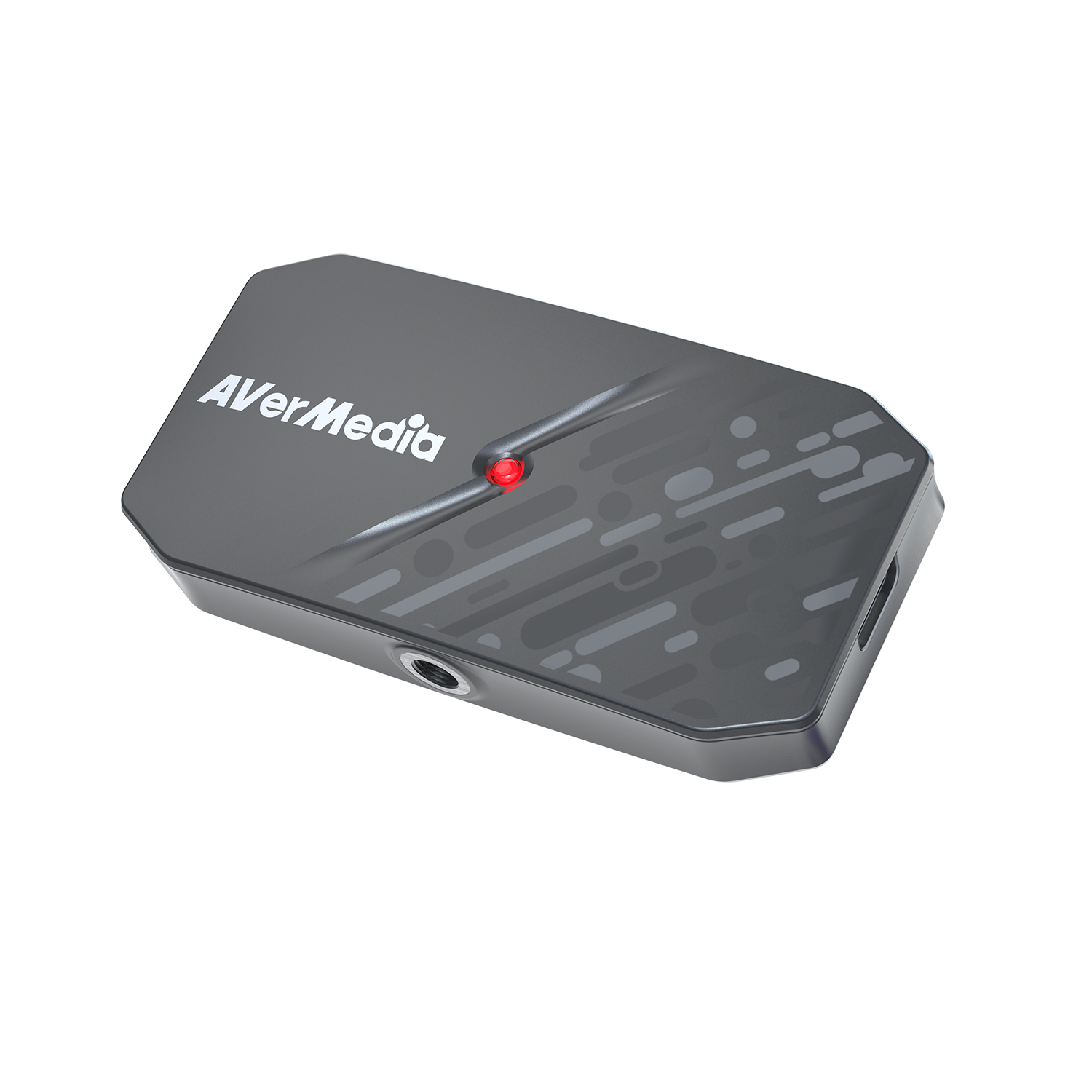
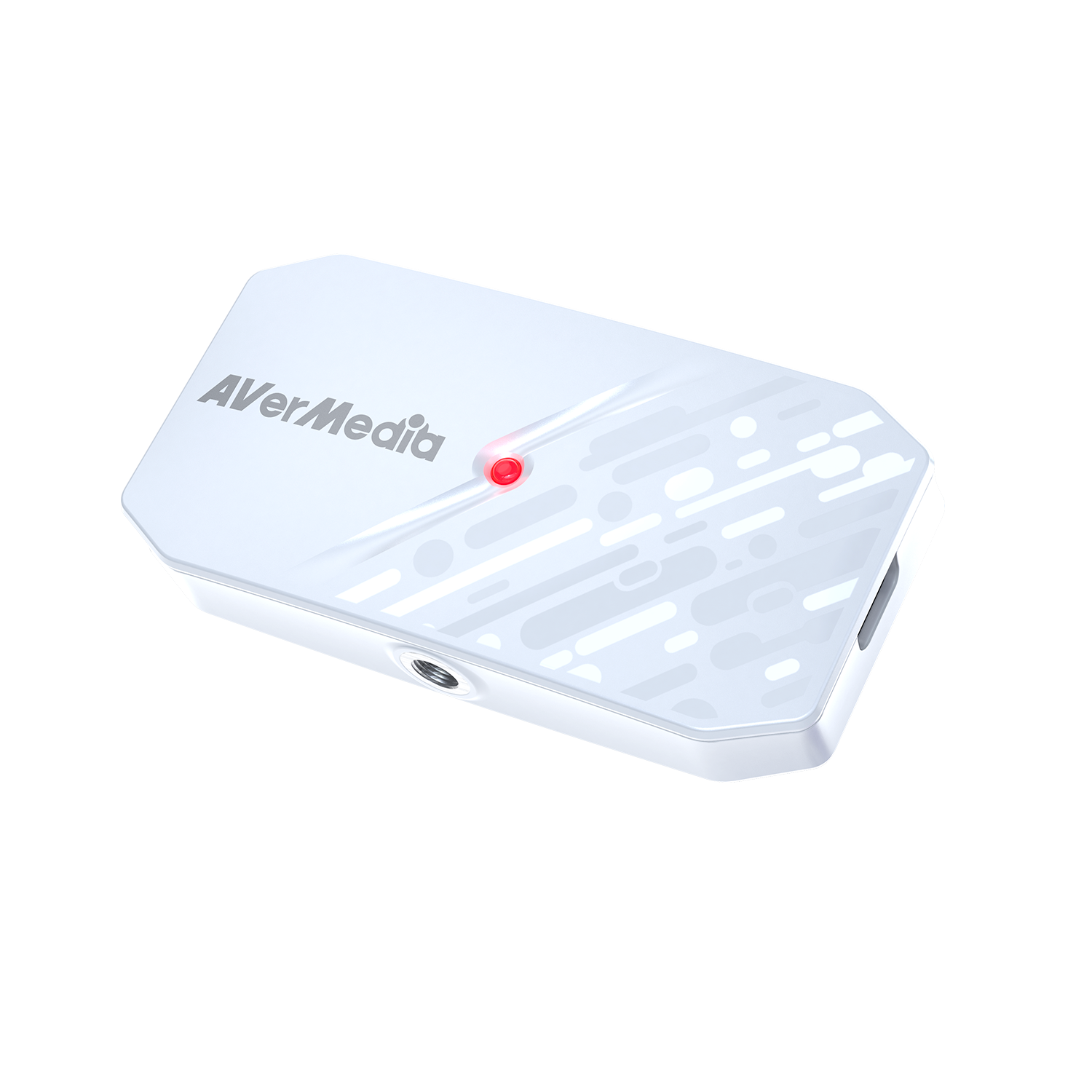
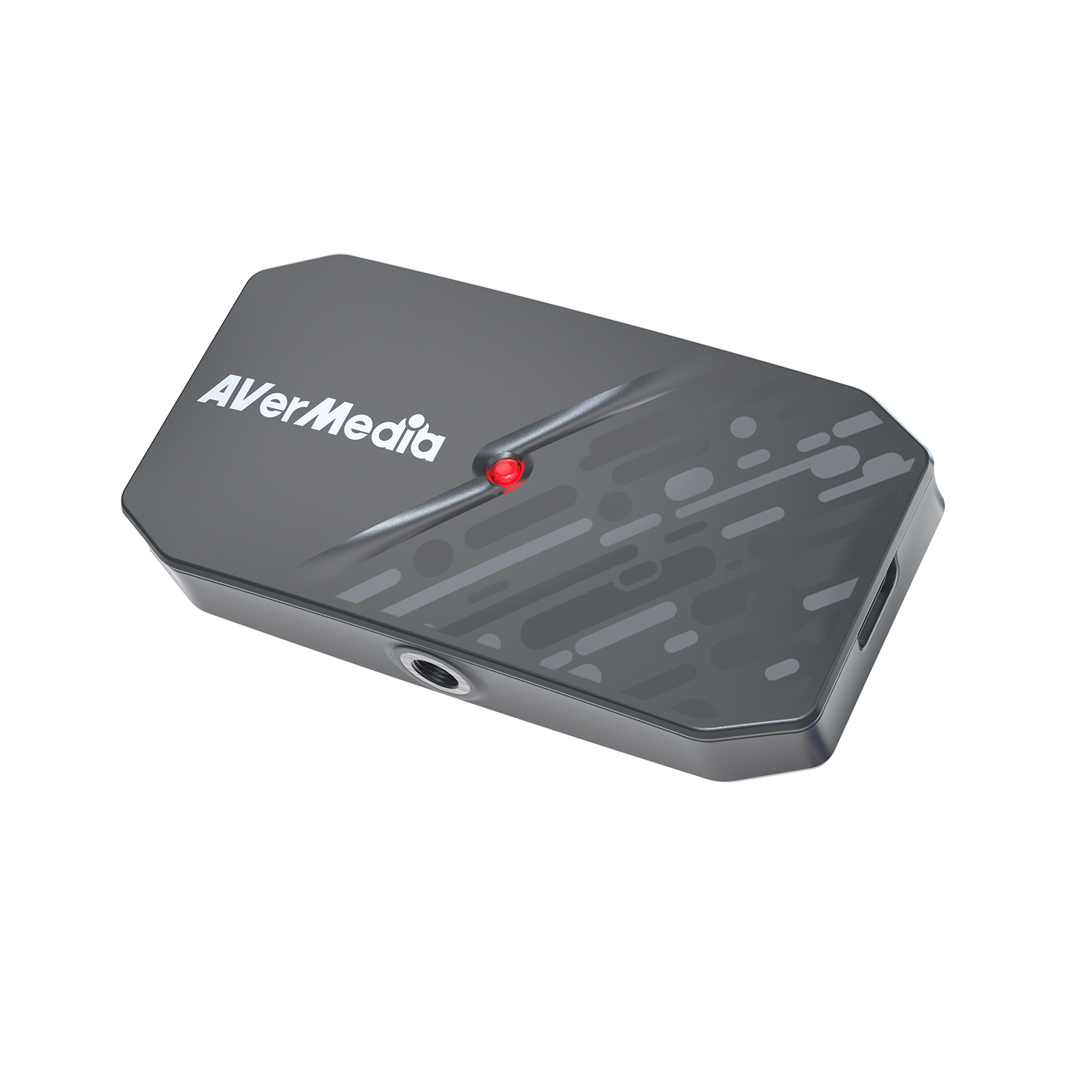
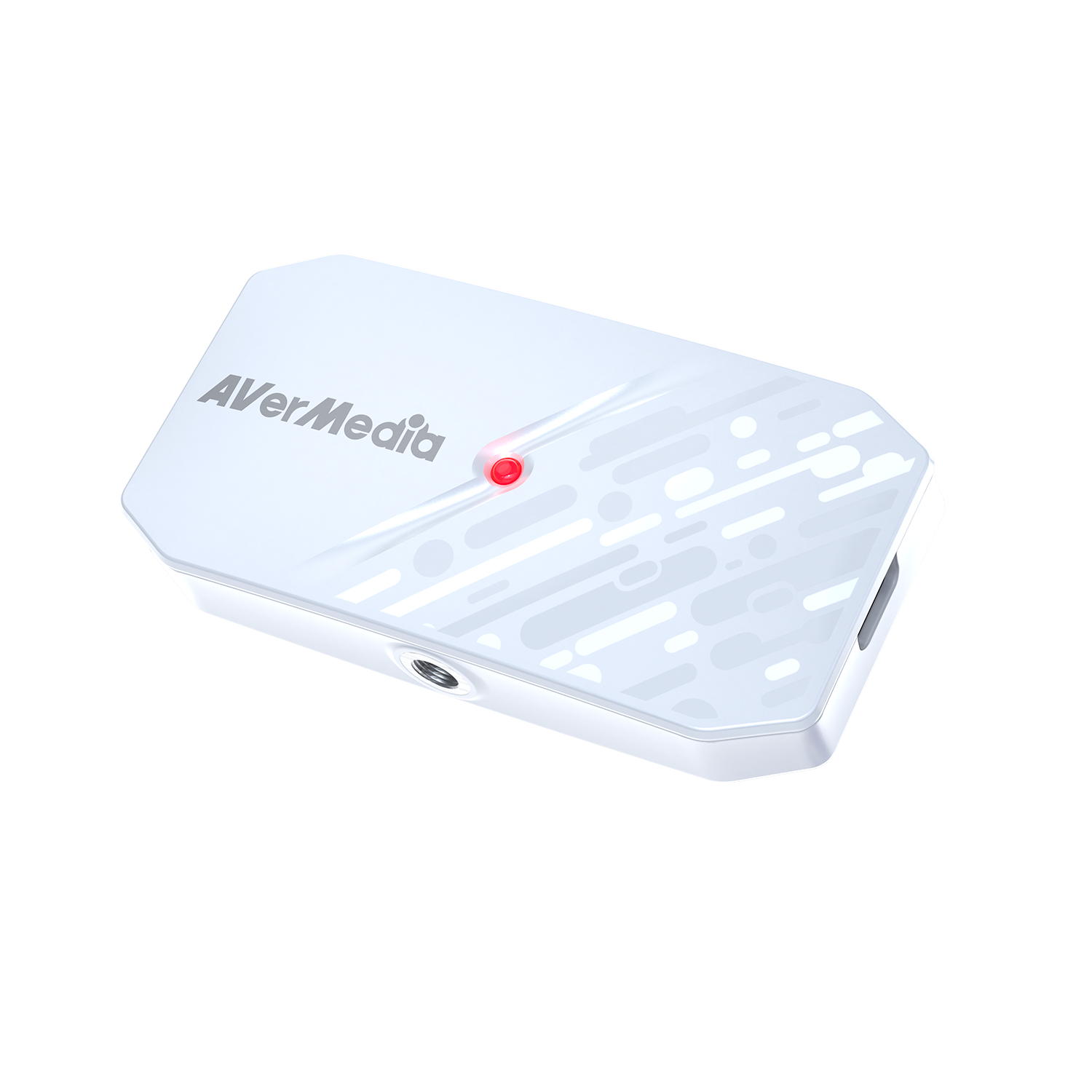
Explore this need in the finder →The AVerMedia CamStream 4K BU113G2 is a small camera-to-computer capture device with an HDMI 2.0 input and a 5 Gbps USB 3.2 Gen 1 Type-C output. The US store lists black and white finishes under separate package SKUs—61BU113G20AV and 61BU113G20A7—while the manufacturer technical page describes one BU113G2 functional model. The product material is aimed at DSLR, mirrorless, action-camera and camcorder workflows. This is an evidence-based assessment of the manufacturer pages, manuals and mode table, not a hands-on test.
It captures through USB rather than looping HDMI to a display
The core layout is simple: connect the camera's HDMI output to BU113G2, then connect the USB output to a computer or supported mobile host. The published specification does not list a second HDMI connector or an HDMI passthrough mode. That makes the BU113G2 different from a typical console capture box that sends HDMI onward to a monitor. If your camera or game system must feed a display through the capture device, do not assume this model will do that; plan a separate camera/console output route or consider a model with explicitly documented loop-through.
The device is unusually light at a listed 26 g and measures 80.8 × 40.8 × 14.5 mm. A 1/4-inch thread and included cold-shoe mount make it easier to position near a camera rig, but they do not solve cable strain, camera output settings or the computer connection. The package listing includes a Type-C-to-Type-A cable, quick-start guide and cold-shoe mount; verify the exact finish and contents on the US offer because AVerMedia notes that accessories may vary by market.
Read the capture table by codec
“4K” is not a single operating mode here. AVerMedia lists MJPEG capture up to 4K60, 3440 × 1440 at 60 fps, 2560 × 1440 at 144 fps, 2560 × 1080 at 144 fps and 1920 × 1080 at 144 fps. The NV12 row includes 4K30, 1440p60 and 1080p120; YUY2 includes 1080p60 and several lower or ultrawide modes. P010 HDR10 and RGB24 at 1080p60 are Windows-only in the published product table.
A common source of confusion is the separate input ceiling: the manufacturer lists incoming HDMI formats up to 1080p240, but that does not mean the device captures 1080p240. The supported capture-output table tops out at 1080p144 MJPEG. Likewise, input support up to 4K60 and capture up to 4K60 are not proof that every camera, cable, codec and application will select the same mode. Check the row for the format you plan to use.
High-rate modes depend on host and software
The USB interface is 5 Gbps, and USB 2.0 is explicitly unsupported. A USB-C connector on a laptop or tablet is not proof of the required data bandwidth; use a USB 3.2 Gen 1-or-faster port and check the computer's own specifications. AVerMedia lists Windows 10 x64 or later with CPU/GPU requirements, macOS 14/15 or later with a separate hardware floor, plus iPadOS 17 or Android 14. Mobile use requires a compatible USB-C/OTG setup and an application that accepts a USB camera input.
The store names OBS Studio, Streamlabs and Zoom among supported applications, and the manufacturer provides AVerMedia Streaming Center on Windows. But the source pages do not publish one app-by-app mode matrix. In particular, AVerMedia's own FAQ says to use Streaming Center for better performance and stability when selecting 4K60 MJPEG, because frame drops may occur. On macOS, 4K60 MJPEG has a higher requirement—M1 Ultra/M2 Ultra or above, with current firmware—and HDR capture and RGB24 are not available. Do not assume an OBS compatibility label makes every maximum available in OBS or on every computer.
What it is—and is not—a fit for
BU113G2 is compelling on paper for a camera workflow where the device should sit near the rig and feed USB capture to a capable host. It offers a range of pixel formats, a small body and a mounting option, with black and white finish choices documented as separate SKUs. It is less suitable when you need display loop-through, analog audio input, a USB 2.0 connection, guaranteed 4K60 across ordinary laptops, Mac HDR capture or 1080p240 recording.
For comparison, the AVerMedia GC311G2 has a dedicated HDMI output and a clear 1080p60 capture/4K60 passthrough role. BU113G2 gives a camera-oriented, direct-to-USB path and higher listed capture ceilings, but no display output. Neither replaces checking the source's actual HDMI output, the host's USB data rate, app behavior and chosen codec. No independent frame-rate, image-quality, latency or sustained-stream testing is claimed here.
Key specifications
Key details at a glance
| Signal input | hdmi_2_0_unencrypted |
|---|---|
| HDMI generation | HDMI 2.0 |
| Confirmed capture formats | MJPEG: up to 4K60, 1440p144 and 1080p144 / NV12: up to 4K30, 1440p60 and 1080p120 / YUY2: up to 1080p60 / P010 HDR10 (Windows only): up to 1080p60 / RGB24 (Windows only): up to 1080p60 |
| Confirmed passthrough formats | |
| Computer connection | External USB 3.x host link; check this model's stated generation and port rate |
| Named compatible software | AVerMedia Streaming Center (Windows) / OBS Studio (named on the US product listing) / Streamlabs / Zoom / AVerMedia Assist Central Pro and firmware tools |
| HDR recording | P010 hdr10 capture is listed on windows at up to 1080p60; hdr capture is unavailable on macos. no ipad hdr mode table was found. this is capture to usb, not hdmi passthrough. |
| Analog audio input | Hdmi audio accompanies the capture input. the reviewed package/specifications do not list an analog microphone/line input or separate hdmi display audio output. |
Use the exact model’s instructions for operating limits, supplied equipment and version differences.
Sources for this review
Sources for this assessment
- BU113G2 CamStream 4K — official US black listing and package SKU
- BU113G2 CamStream 4K — official US white listing and package SKU
- CamStream 4K BU113G2 — manufacturer technical product page and mode limits
- BU113G2 User's Guide — installation, UVC connection and mode reference
- BU113G2 datasheet — video formats, package and system limits
- BU113G2 quick guide — camera-to-host setup
- BU113G2 recording resolution and frame-rate table by video format
- BU113G2 4K60 MJPEG frame-drop FAQ and software guidance
- AVerMedia HDCP guidance — protected HDMI sources cannot be captured
- Official US BU113G2 black product image
- Official US BU113G2 white product image
Check your complete signal path
Choose the source format, desired captured signal, passthrough target, computer connection and software together. A single device must support that whole arrangement.